
Write your scene description
Type a prompt describing subject, environment, camera movement, and mood. "A cherry blossom tree swaying in wind, slow tilt-up, golden hour" produces better results than vague descriptions.
Video tools
Turn text prompts into AI videos with full control over model, aspect ratio, duration, and camera direction. Create cinematic clips from words alone.

Text to Video
Turn prompts into AI videos with model selection, aspect ratio, duration, and camera direction.
How it works
Type a prompt describing subject, environment, camera movement, and mood. "A cherry blossom tree swaying in wind, slow tilt-up, golden hour" produces better results than vague descriptions.
Select Wan 2.6, Seedance 2.0, Kling v3, or Veo 3. Pick aspect ratio — 9:16 for Shorts/Reels, 16:9 for YouTube, 1:1 for feed posts — and clip duration (4–10 seconds depending on model).
Submit the generation job. Your clip appears in the history page. Download or refine the prompt and re-submit to iterate — no source footage is ever needed.
Why use it
Each page maps one user job to the required video inputs and model family.
Default text-to-video route verified against live endpoint tags with broad aspect-ratio and duration support.
Ready tools connect to the AI Pin Maker video generation workspace.
Related video tools help continue from effects into editing, music, and production workflows.
Use cases
Create short campaign visuals for product, seasonal, and event launches.
Produce vertical hooks, reaction clips, and meme-ready effects for social channels.
Turn examples and step explanations into short visual teaching clips.
FAQ
Related tools
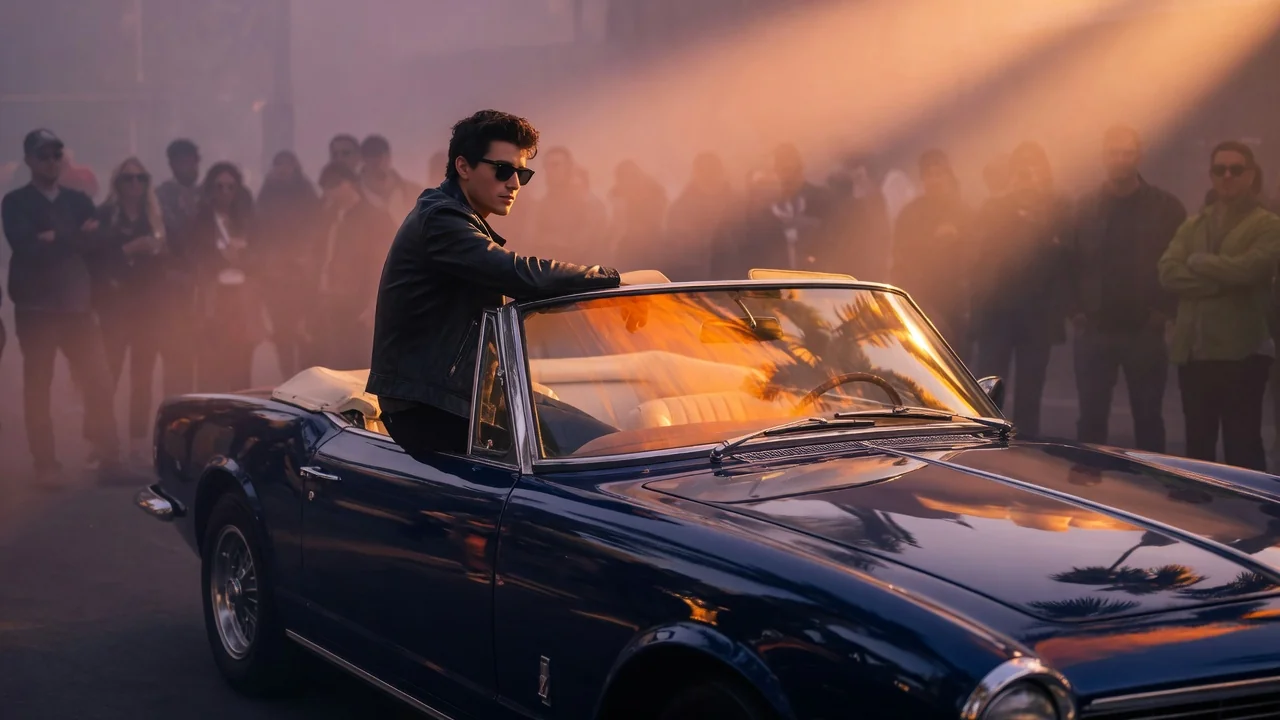
Animate still images into short AI videos with natural camera motion. Bring photos to life for social clips using verified image-to-video models.

Generate high-quality AI videos from images or text. A versatile entry point for image-to-video workflows with cinematic motion and coherent results.
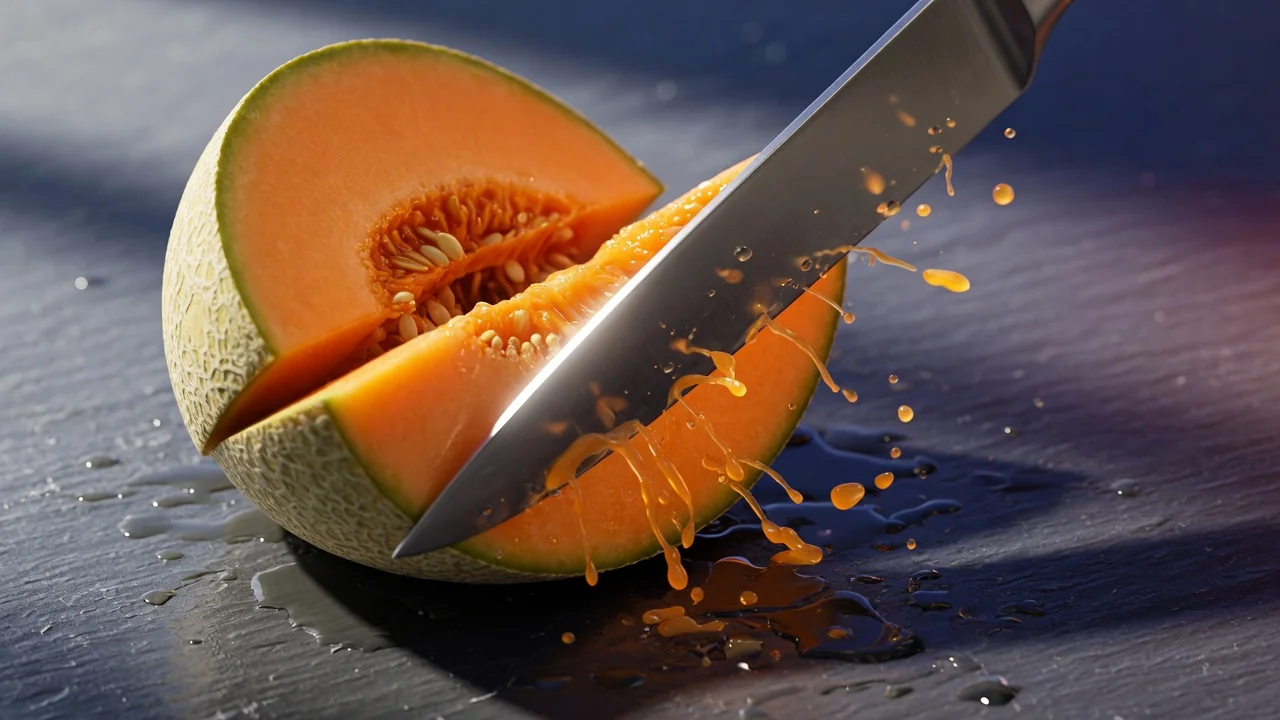
Generate soothing AI ASMR videos from text prompts. Audio-focused creative direction crafts calming, satisfying clips for relaxing short-form content.