
Upload your image
Upload a JPEG, PNG, or WebP image. Portrait, landscape, and product shots all work. Clear subjects with defined edges animate most naturally.
Video tools
Animate still images into short AI videos with natural camera motion. Bring photos to life for social clips using verified image-to-video models.
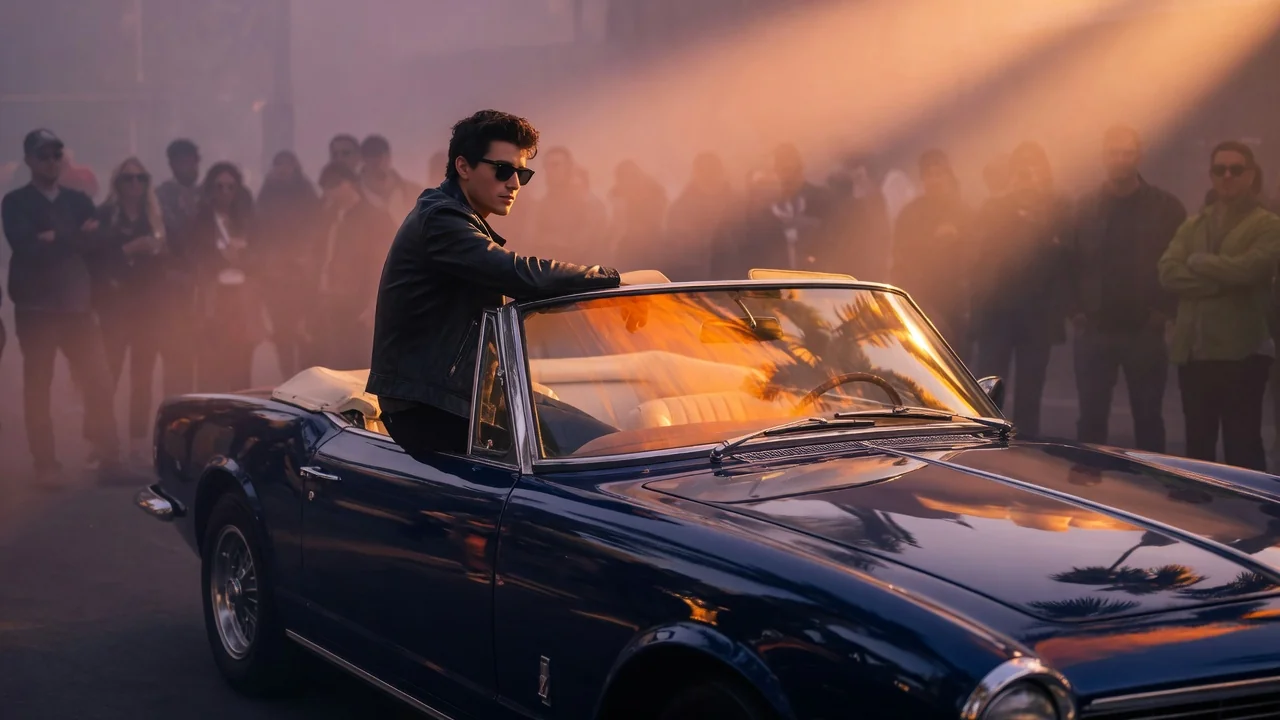
Image to Video
Animate still images into short AI videos with verified image-to-video models.
Upload photo
PNG, JPG, WebP up to 10MB
How it works
Upload a JPEG, PNG, or WebP image. Portrait, landscape, and product shots all work. Clear subjects with defined edges animate most naturally.
Describe how the scene should move — camera direction, subject action, and depth cues (e.g. "slow dolly in with bokeh depth") help Seedance 2.0, Kling v3, Veo 3.1 Fast, or Wan 2.6 interpret intent. Leave blank for ambient motion inferred from the image.
Submit the job. Your 4–6 second HD clip appears in the history page. Switch models to compare outputs at no extra input cost.
Why use it
Each page maps one user job to the required video inputs and model family.
Default image-to-video route verified against live endpoint tags and tuned for short viral effects.
Ready tools connect to the AI Pin Maker video generation workspace.
Related video tools help continue from effects into editing, music, and production workflows.
Use cases
Create short campaign visuals for product, seasonal, and event launches.
Produce vertical hooks, reaction clips, and meme-ready effects for social channels.
Turn examples and step explanations into short visual teaching clips.
FAQ
Related tools
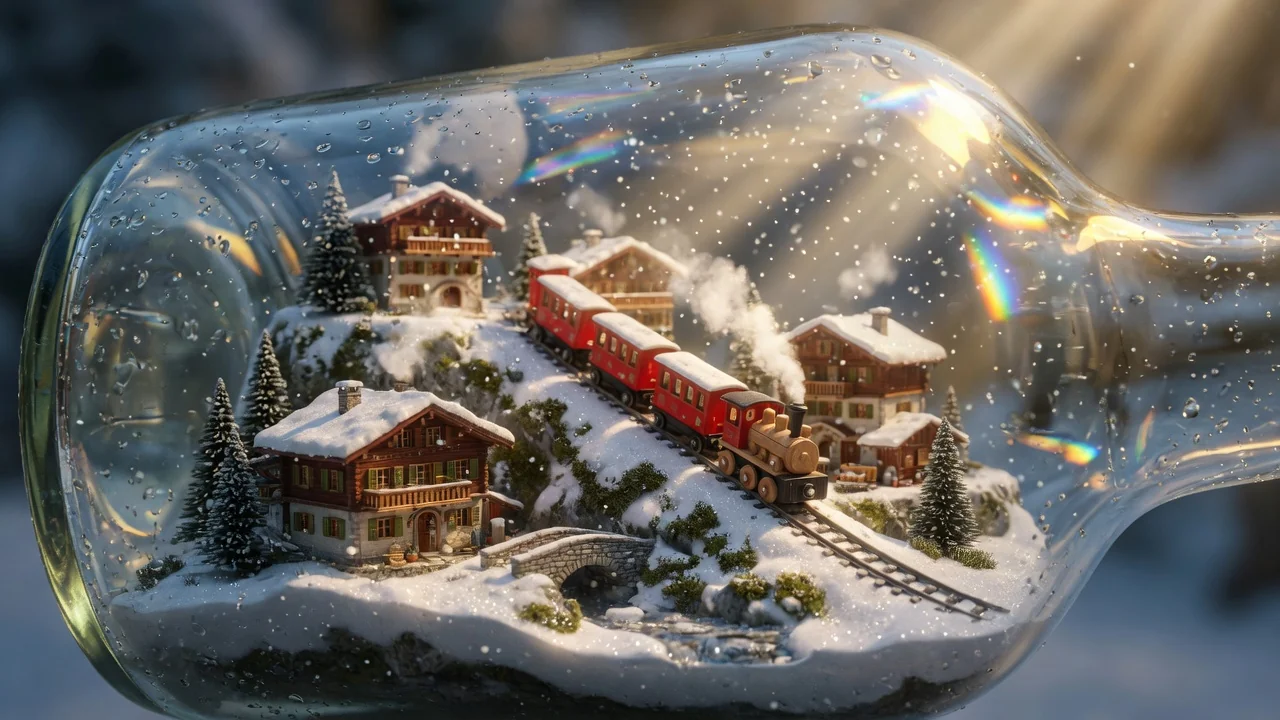
Turn text prompts into AI videos with full control over model, aspect ratio, duration, and camera direction. Create cinematic clips from words alone.
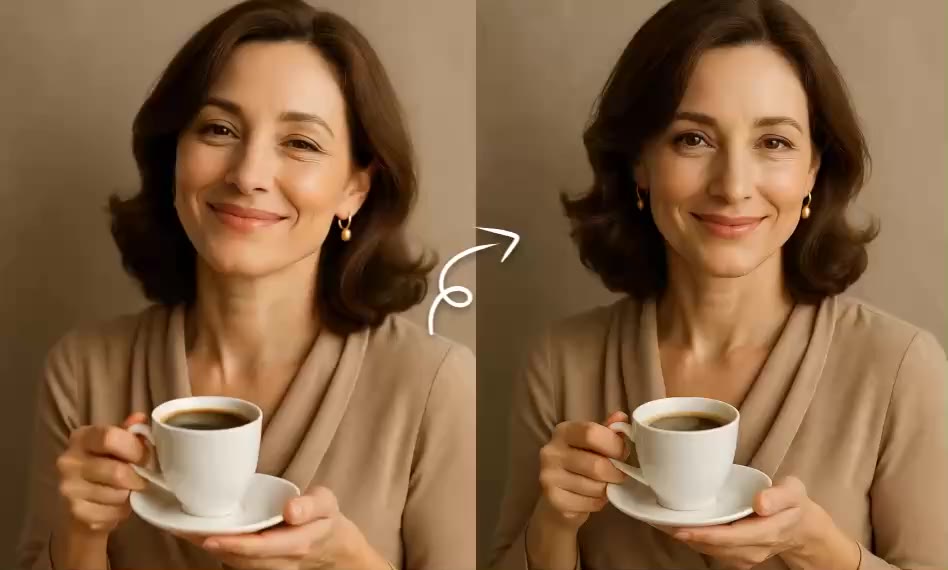
Bring still images to life with short AI animations. Add subtle, natural motion to photos and artwork for eye-catching, shareable social clips.
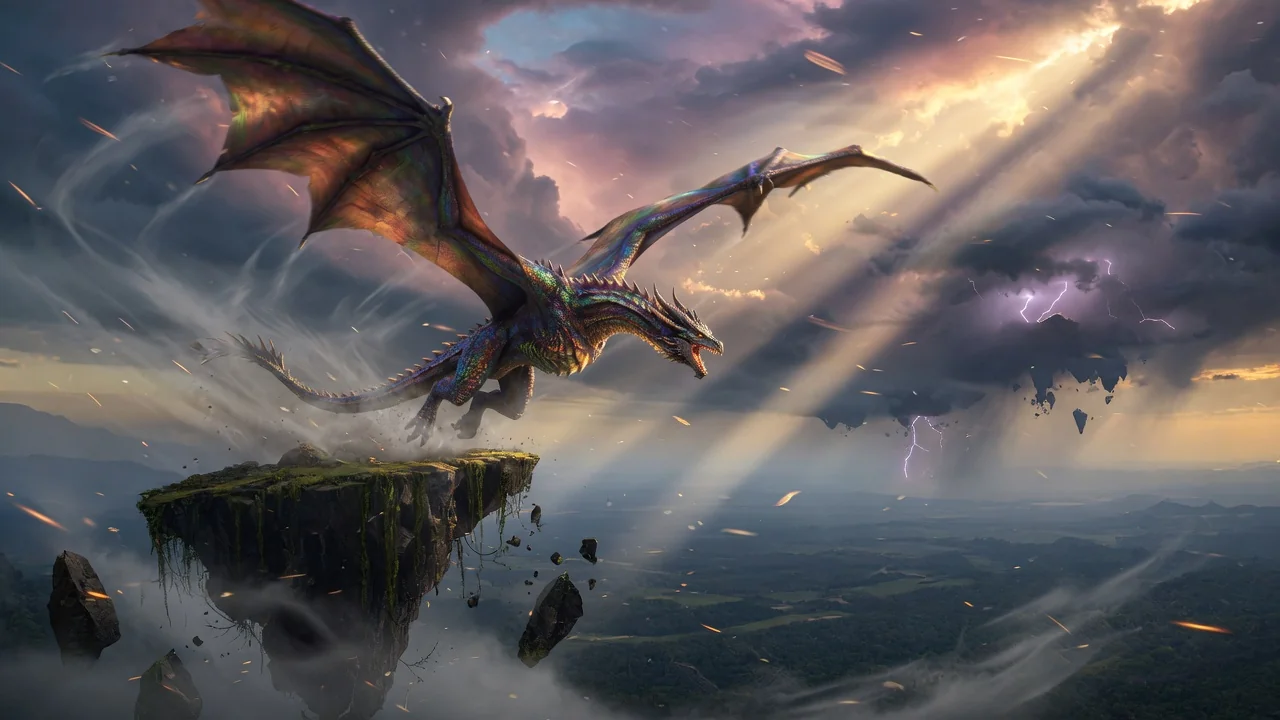
Generate high-quality AI videos from images or text. A versatile entry point for image-to-video workflows with cinematic motion and coherent results.