
AI icon generator
AI Icon Generator for Badge and Pin Concepts
Turn generated icons into readable enamel pin concepts, badge mockups, launch marks, and short campaign assets with AIPinMaker.
AI icon generator
icon generator ai
generative ai icon
ai icon generator free
free ai icon generator
icon maker ai
Start from this search
How to use AI icon generator
Turn ai icon generator research into a reviewed creative brief, choose the right model route, and keep the generation path attached to your project before spending credits.
Turn an icon idea into an enamel pin concept
Review whether an AI-generated icon is badge-ready
Create a simple product symbol for merch or launch assets
AI icon generator workflow steps
-
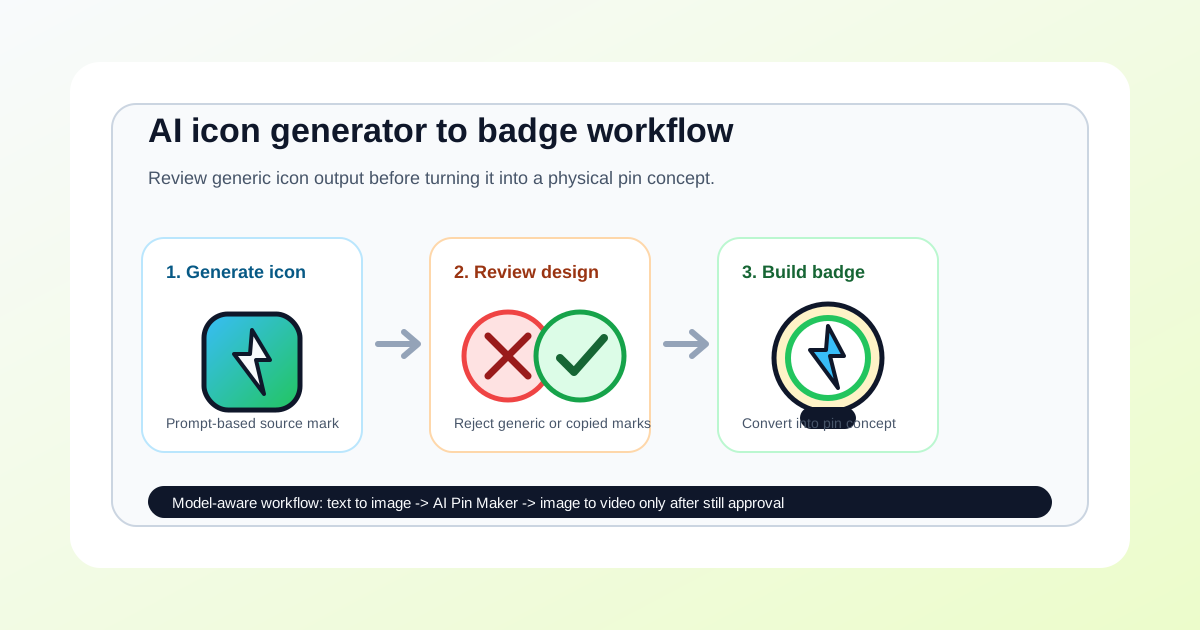
1. Write one icon role, audience, and physical product target
-
2. Generate still source frames with clear shape and limited colors
-
3. Reject generic, copied, or gradient-dependent icon directions
-
4. Convert the strongest mark into an enamel pin or badge concept
-
5. Save the approved still frame before testing video or campaign variants
Lay out the pin concept from this workflow in the AI Pin Maker studio — try it free, no account needed.
Icon sets need a system, not one-off renders
A single good icon is easy; a set of twelve that look related is the real job. Fix the style variables first — stroke weight, corner radius, fill versus outline, palette — and repeat them in every prompt so the set shares one visual grammar. Generate candidates in batches on AI Pin Maker and reject any icon that breaks the system, even if it looks good alone; consistency is what makes a set feel professional.
Common questions
Can I use an AI icon generator for enamel pins?
Yes. Use the generated icon as source art, then review outline strength, color count, originality, and small-size readability before creating a pin concept.
What makes an icon badge-ready?
A badge-ready icon has a strong silhouette, limited colors, clear border, and a design that still works without tiny text or soft gradients.
Should I animate an icon first?
No. Approve the still icon and pin concept first. Use image to video only when the mark is clear enough for a launch reveal or campaign clip.